Recent Movies
Showing posts with label Modem Unlocking. Show all posts

Vodafone ZTE K3770z Unlocking


As we know Vodafone has launched ZTE K3770-Z which is a cheapest modem now a days and  many of our readers are buying its unlocking dashboard from market and its too costly so I am here with free dashboard and unlocker download link.. so go ahead and download it from the link given at the and of the post


Vodafone ZTE  K3770-z Features and Specification

  1. UMTS 1700/2100MHz
  2. GSM/GPRS/EDGE(850/900/1800/1900MHz)
  3. Support: HSDPA data transfer speed up to 7.2Mbps HSUPA date transfer speed up to5.7Mbps
  4. Support SMS services
  5. Support data statistics
  6. Color: White and Red
  7. Plug & Play
  8. Support Windows 2000/XP/Vista/Windows 7 and Mac Operating Systems
  9. Weight: Near 30G
Download K3770z Unlocking Firmware And Dashboard From Below Link :-

Download K3770z Download Tool From Here

Download K3770z Unlocker From Here

Step To Unlock Vodafone K3770-z

  • First of all download Dashboard and Unlocker For the same ZTE  K3770-z
  • Then Extract Both On Desktop
  • Now Plug your modem in The Computer and Let it install its original dashboard and device driver


  • Now Open K3770z downloader_original.exe From K3770z Download Tool and let it find the port and modem Automatically
  • Then  click on Software Version and select the Unlock File Folder
  • Then Click On the Arrow Shown Beside Modem Info and you are done it will flash Unlocked Dashboard Directly to you modem
  • Now Please Wait till the process got complete

If you are facing any problem Let me know by comment


CHANGE UR MOBILE PARTNER SCREEN


go to Huawei DASHBOARD installed folder and find skin folder
extract zip file and replace both file in that folder (b4 replacing back up ur old skin

file)...it will only change theme of Huawei DASHBOARD...


if u want to change the background picture do this.......
go to this folder - Huawei DASHBOARD\plugins\DialupUIPlugin
u ll find a picture called OperatorBand.png backup that picture 1st..........now
replace that picture with ur own picture....that picture must b in png format 740x407
pix...
ur done.now open Huawei DASHBOARD .........SKIN FILE DOWNLOAD HERE


-------------------------------------------

Huawei Connection Manager
25.005.26.00.11


With All Indian Profile
New LooK
Driver Updated 4.23.02.00


Huawei Connection Manager DOWNLOAD link


________________________________
Mobile Partner 16.001.06.01.500 updater WITH ALL INDIAN PROFILE, CALL, VIDEO CALL, SMS, MMS, USSD, DATA LIMITER

WITH LATEST HUAWEI DRIVER
MOBILE PARTNER DOWNLOAD link 1


MOBILE PARTNER DOWNLOAD link 2
_________________________________

Huawei Modem Latest Drivers Version 4.23.02.00
Release Notes:-
*Add a new feature for disable LLMNR.
* Disable remote-wakeup while S3 S4 S5.
*Fix the Lenovo will open in the whole test PCUI port,and register a Notification,in order to close the port before the port state changes (such as Disable),but we registered this change will result in Lenove Notification failed,so APP can not get port status change notification,in can not close the port.This led to a failure of the whole test items(Disable/Enable)
*Fix the PC power state fome S0 to S3,asked board to reflect the correct side of the power state of the S0 to S3.
* Fix the supporting E353s products,wake up after standby NDIS dial,dial-up barrier after the success of Ping.
* Fix the Jungo driver Balong LTE
platform supports the Northern Research products,combined into the AT^SYSINFOEX need to replace the original command does not support the AT^SYSINFO LTE products command.
*Fix the In frequency of AWS or W900,download an upload concurrently,after 5 minutes,rate drop to Zero.
*Fix the Six operating segments corresponding to the operator firm name does not appear in the WWAN at.
*Fix the issue that failed to get IP address while connecting after resume from standby on some special computers.
* Fix the issue that failed to get correct NDIS connection state after resume from standby on some special computers.
* Fix the issue that failed to ping with automatical test tool Airflux after connected with NDIS.
Huawei Modem Latest Drivers Version 4.23.02.00 Download 


_________________________________
all huawei modem supported

huawei ec150 unlocking


New tips to unlock the Reliance Netconnect+ with DFS and Firmware Update. you can simply unlock your Reliance Netconnect+ with this trick.


Steps..

1. To find the SPC Code of the device


7. install the  huawei ec150 dashboard then open the  Firmware Update
   
8. change the firmware into new then install the dashboard

huawei ec150 spc code generator


New tips to find SPC code fot  Reliance Netconnect+ with DFS . you can simply find  your Reliance Netconnect+ SPC code with this trick.


Steps.

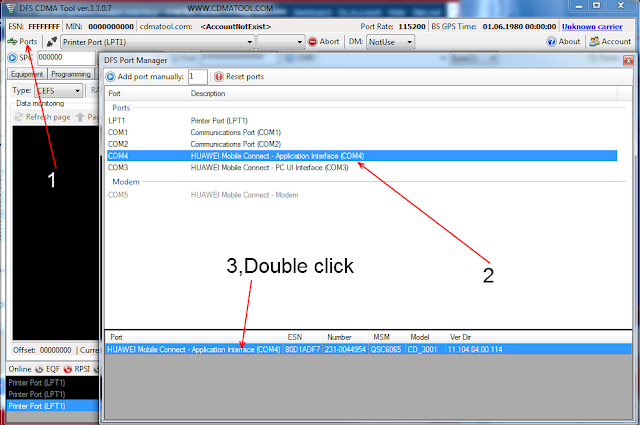
1. Download DFS for Getting the SPC Code of the Device.


2)Now Install it!

3)Install the Software of your Service provider[eg:Reliance,Tata etc]

4)Now connect your Huawei Modem[ec150]

5)Open DFS tool and open the Ports tab and select the Application Interface(COM?) from it..


8)Now,the front screen displays all the Info about the Device!

 
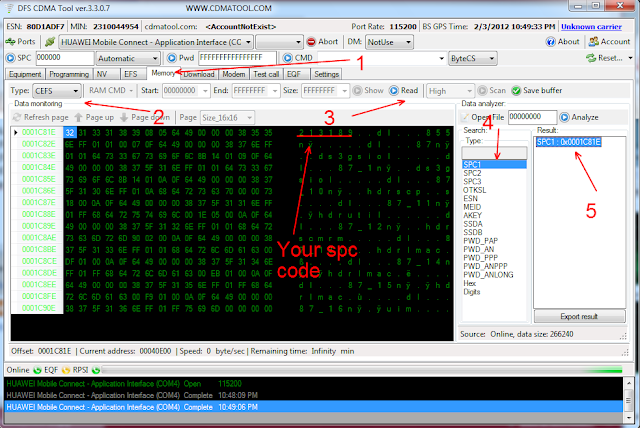
9)Now,Go to Memory tab and set Type as "CEFS" and press "Read"...

10)Wait until it completes and press Digits or hex in the Right pane and now again press "Spc1"..

11)Now a hex value will appear right to it...

12)Click it and Now a Hex table will appear and the 6 digits displayed in the right side of the table is the
   spc code.....


Unlock Idea Net Setter New E1550 Latest Firmware version


This is the unlocking trick for new Idea e1550.As we know idea had recently updated its new idea e1550 firmware Here is the new updated firmware,E155XUpdate_11.609.18.00.00.B418. link is provided.If you are using old idea then you can use the old firmware 11.608 and new e1550 use 11.609


  • Insert Your idea netsetter with default sim (which u got with netsetter)
  • To calculate unlock/flash code please use Universal master code software. Use below link to download it.
    DOWNLOAD UNIVERSAL MASTER CODE SOFTWARE
  • Then Put You IMEI number in IMEI box and Find Flash code (See above  image)


  • Then, Install Huawei firmware E-1550 For Idea Net Setter.
New Firmware version E155XUpdate_11.609.18.00.00.B418. For new E1550. Download it from below link :
.Rar file password :: naim4you (Type password manually)

Firmware version E155XUpdate_11.608.13.02.00.B418.  Download it from below link :
  • Now Go-to Huawei Firmware And Install It.
  • When software asked for FLASH CODE, use FLASH CODE that was generated by Universal master code software.


 Hope  this  helped to unlock your idea e1550 modem now post your valuable  comments below


Use internet WITH OUT UNLOCKING MODEM

This is a new technique for advance Nokia users,It works with some modem.It is sure It will not work with all modems,But If you are looking in safer side you must try this before unlocking any modem,As modem unlocking can harm your modem if not done correctly also your modem warranty will be lost on unlocking.If this post is a waste please ignore,If it is woking for you you can thank me below.


 Use internetwithout unlocking modem
  • Insert SIM in Modem
  • Modem show invalid SIM, just ignore it and close modem software.
  • Start NOKIA PC suite.
    DOWNLOAD NOKIA PC SUITE
  • Goto nokia pc suite connect to internet option.
  • Goto Configure. Select your data card modem,and make all operator apn setting as like when we use nokia mobile connection.
  • Finish set up.
  • Now connect to internet through PC suite.
  • Net is connected without unlocking the modem.


I havent tried this with any locked modem,But you must try this before unlocking any modem.Thus you can safeguard you modem warranty .Thank you comments below


bsnl evdo zte ac8700 Unlocking


many of the evdo subscribers are unsatisfied with bsnl service. so here is a trick to unlock your bsnl evdo zte ac8700 modem. the trick is tested and is hundred percent working. all you need is just 10 minutes to unlock bsnl evdo zte ac8700 modem. you will need to download some softwares for unlocking bsnl evdo zte ac8700 modem. after unlocking you can use any cdma sim on your zte ac8700. like mts,tata indicom,reliance cdma etc. you can switch to new plans. and you can unlock the modem if you have network problem and want to try a new provider.as this is tested only on ac8700 this trick may work on other cdma modems also

step by step guide to unlock bsnl evdo zte ac8700 modem

  • the bsnl evdo modem is configured as non ruim. it also has the capability to work as ruim. so you just need to enable the ruim feature in your modem. (ruim=removable user identity module)
  • first of all you have to download the cdma workshop software
  • you must disable your antivirus while trying to unlock bsnl evdo zte ac8700 because the cdma workshop software here will be considered as a virus by most of the antivirus softwares, dont worry this is not a virus infected file if you have doubt you can scan your pc after unlocking your bsnl evdo zte ac8700, i assure there will be no problem.
  • after disabling antivirus run the cdma workshop
  • and in the common port drop down list select the common port of your bsnl evdo zte ac8700
bsnl evdo zte ac8700 unlock
  • and click on connect, wait for the ac8700 to connect
  • after the bsnl evdo zte ac8700 modem is connected select the security tab and select spc. input 000000 in the box  click spc  and click send
bsnl evdo zte ac8700 unlock
  • it will show a message as spc accepted
  • now select the “other” tab and in the ruim select  ruim only and click on the send button. this makes your non ruim bsnl evdo zte ac8700 to ruim
bsnl evdo zte ac8700 unlock
  • now you have successfully unlocked your bsnl evdo zte ac8700 modem free of cost
now you can delete the cdma workshop and enable your antivirus. and insert any cdma sim into your bsnl evdo zte ac8700 and change the apn settings and connect to internet
if you have any problems unlocking bsnl evdo zte ac8700 modem please comment here. if you enjoyed 


zte ac 8700 bsnl evdo driver 


here is the original versin of zte ac 8700 huawei modem by bsnl, the device is commonly called bsnl evdo. for those who have lost the driver here is the iso image of the original cd that came with ac 8700 from bsnl. you will need daemon tools to install the driver since it is in the iso file format. you can directly download it from here for free. you can also write the image on to a new cd or dvd.
so hope you all enjoy this. if you want to request similar softwares you can comment here. for any wireless modem related softwares


mts blaze modems unlocking


mts mblaze uses the evdo cdma technology for connectivity. tehy provide their service through a variety of models of modem like mmx 250c, ec220 etc. this trick works for any cdma modem like tata indicom or reliance cdma.
the trick is queit simple and you can unlock your mts in just 5 mins by reading this detailed step by step guide. first of the things you need to make sure is that there is a provision to use sim in your mtsmodem. if there is a sim slot you can proceed. you will need to download few softwares to do the unlocking your mts and you will also need the spc code for your mts mblaze modem. the procedure is same for any model of mts mblaze. like huawei or micromax or zte.

step by step guide to unlock mts modems

  • mts disables the ruim facility of the modem before they sell it. all you need to do is enable the ruim (removable userdentity module). this can be done easily by cdma workshop
  • download and install the cdma workshop software from here. kindly remember to disable the antivirus before downloading this dsoftware because a few antivirus considers cdma workshop crack as virus
  • run the cdma workshop software that you just downloaded to unlock mts modem
  • in the common port drop down list select the com port to which you connected the mts modem, refer to the screen shot
bsnl evdo zte ac8700 unlock
  • and click on the connect button
  • after the mts modem is connected select the security tab and select spc. input 000000 in the box  click spc  and click send. 000000 is the default spc for mts. if this spc is not correct then  try to use the read spc option from the cdma workshop the function is available in only few mts modem models

bsnl evdo zte ac8700 unlock
  • it will show spc accepted. if this message doesnt appear unlocking will be very hard
  • now select the “other” tab and in the ruim select  ruim if availabe or to ruim only and click on the send button. this makes your non ruim mts modem to ruim
  • thats it you have successfully unlocked your mts modem
  • if you select ruim only then the default mts service will not work
  • if you select ruim if available then you can use mts without the sim and other services when you insert the sim into the mts modem
if you have any trouble other than the wrong spc code please comment here. if your spc was wrong you can try to read spc code using the option in the cdma workshop. this feature is available in some models only. hope you will enjoy

Huawei Airtel E1731 unlocking


After idea cellular now Bharti airtel also comes with E1732 which has customized firmware and its firmware version number is  11.126.16.04.284 and software version is 16.001.06.07.254 Fakiro and much disappointed thing is that even DC-Unlocker is not supporting it so I am here to guide you to unlock your new Airtel E1731.


Download

Steps...
  1. First of all generate unlock and flash code using Universal Master code Calculator  or you can do it online by using our online code calculator.Universal Master Code Generator thumb Unlock Huawei Airtel E1731 (Customized Firmware Solution)
  2. Then plug your device to your laptop/Desktop then Run E173Update_11.126.85.00.114_B427.exe  it will find your modem automatic.Searching for Device thumb Unlock Huawei Airtel E1731 (Customized Firmware Solution) 
  3. Then the process will start and on the next screen you will be asked to give flash code or unlock code as your password .
  4. As this step completes your software will be updated successfully
  5. And you are Done

vodafone 3G USB Stick unlocking


Now I can make the most of my mobile Internet connection from my laptop or desktop.
 
The Vodafone Mobile Connect 3G USB Stick let me work from anywhere with real-time access to information, and no installation hassles.

I just plug it into my laptop and get connected to the Internet and my company server. And all at speeds that are faster than my traditional dial-up connection!
That’s not all – the Vodafone Mobile Connect 3G USB Stick also gives you 3G Broadband speeds while roaming abroad.

Vodafone Mobile Connect 3G USB Stick


  •  Gets you high-speed connectivity to the internet through the Vodafone EDGE network.
  • Is easy to install – just plug in and you are ready, no CDs required.
  • Gives 3G Broadband speeds when you travel abroad.
  • Works with your preferred VPN software, to give you secure access to your company server and intranet.
  • Has many different tariff plans, so you can choose the one that meets your requirements.
  • Saves you from high internet charges on your hotel bills.
  • Gets you high-speed connectivity to the internet through the Vodafone EDGE network.
  •  Supports SMS

Unlocking Steps...

1)  change the dashboard to mobile partner

2)  you can install the drivers manually and use it

Click Here to Download mobile partner  Dashboard

Click Here to Download Drivers

How to slove "connection terminated" Error in HUAWEI modems


To solve "connection Terminated" error


Sloution 1

This error occurs when some of the services on your computer is turned off. i.e. either stopped or nor started. Also if you try to create a dial-up you will notice that the "Create a Dial-up" option is grayed out. This is because the "Telephony" service on your computer is not started. To start the service...

1)   Click on “start” and open “control panel”
2)   Now click on “Administrative Tools”
3)   Click on “services”
4)   Scroll down to “Telephony” and double click on it.
5)   Click on “start” and then click “Ok”

You are now ready to connect to the internet or to create a dial-up.

You should also note that there are two more services which are critical in this services.msc list.

1) Remote access connection manager.
2) Remote access auto connection manager.

These services will enable your connections, also they are dependent services with Telephony.


Solution 2


Step 1: Click start and run of your pc ,input "C:\Documents and settings\all users\application data\microsoft\network\connections\pbk" enter ,then delete the "rasphone"

Step 2: Right click the my computerand select properties.

Step 3: Click services and search the service named remote access connection manager, right click it and select properties.

Step 4: Click general and select the manual in the startup type item.

Step 5: Then click start and OK.

idea netsetter E1732 permanently unlocking


many people had problems with unlocking idea netsetter huawei e1732. so here is a new method introduced by nill and it works 100%. first of all you must have patience doing this. because the process it bit long. and also you have to download some softwares.


Steps to unlocking !dea netsetter E1732 permanetly...


download the softwares from the below link..


1) idea E1732 updator

2)
idea E1732 unlocking tool

3) new mobile partner dashboard


Note :  you must disable antivirus before starting unlocking


  • Now connect your e1732 idea net setter to pc( sim is not insert while unlocking)


  • find the common port to which your huawei e1732 modem is connected. you can do this by.


Right click on your  "My Computer"  icon > Properties > Hardware > Device Manager > Ports (COM & LPT) > HUAWEI Mobile Connect -- 3G Application Interface


remember the com port number into which your huawei e1732 idea netsetter modem is connected


  • Run “CDMA Workshop v2.7.0.exe”


  • Select the Port that you noted from your Device Manager under the Port option in
“COM Settings (AT mode)” under the “Main” tab.

  • then click on "connect" and then click on "read"

  • Go to the “Security” tab > Type “000000” in the blank box under “SPC” > Click on “SPC” button > Click on “Send” with Default (nv_read) as SPC.


  • Click on “Memory” tab > NV Items > Read > Now a “Conform” box will appear > Click “OK” > Now a “NV Items Backup” box will appear >  In the box straight to “Last NV Item” type “9999” > Click “OK” > Save the file by giving a file name you like (Eg: E1732)


  • When the buffer reach “100%” your file is saved successfully > Now a “Information” box will appear > Click “OK” >


  •  Minimise “CDMA Workshop v2.7.0


  • Run  "E1732 updator” >  accept the agreement > Next > Wait for a few seconds until the search for your modem finishes > (Don’t mark on “Auto remove the device after update”) Next > (Don’t remove your data card until the process is finished) > Start > At the end of “Downloading Programs…” you will get a “Update Failure!” error dialog box (DON’T WORRY & DON’T GET DISAPPOINTED) > Click “OK” > Click “Finish


  • Maxzimize “CDMA Workshop v2.7.0” > “Main” tab > Disconnect


  • Unplug your Idea Netsetter (Modem) from your computer.


  • Again Plug it to the Computer - Check the "Port" again from the "Device Manager"


  • Go to "CDMA Workshop v2.7.0" select the Port that you noted from your Device Manager under the Port option in "COM Settings (AT mode)" under the "Main" tab as we did before - Click on "Connect" - "Memory" tab - NV Items - Click on "Write" - A "Confirm" box will appear - Click "OK" - "Open" dialog box will appear - Open the file that you saved before - When the buffer reach "100%" a "Information" dialog box appears with a success message - Click "OK" - "Main" tab - Disconnect.


  • Now close "CDMA Workshop v2.7.0" - A "Confirm" dialogue box will appear - Click "NO"


  • Close everything - Enable your Antivirus


Your Idea Netsetter E1732 is unlocked successfully.


Unplug Idea Netsetter (Modem) from your computer.


Again Plug it to the Computer.


Wait for Idea Netsetter to Start


Put a SIM Card other than IDEA to the Netsetter / ModemIf it again shows "The SIM/USIM card not been detected or is invalid" (DON'T GET DISAPPOINTED) - Click "OK" - Wait for the SIM card to be detected - It will detect the SIM card and enjoy browsing with any other SIM.


Thanks my friend : skillweb.blogspot.com


Unlock Huawei 3G USB Modem E180 with Easy Steps


After getting so much requests on my previous post that allow users to request their demanded Huawei Firmware Update . Now,I  am going to explain how you can Unlock Huawei Modem E180 with the help of our previous article Unlock Any Huawei Modem.
Now a days, A new Huawei Modem model coming to market -E180, having following features
Huawei E180 – A new data card modem from Huawei with stylist design with compact look.here are list of features this model having.


STEP :1 Before you switched to that article please download Huawei Firmware Update for E180

STEP :2 The socond thing , the same Universal Master Code.exe will be used to  generate your Unlock code
and Flash Code
For Example  : IMEI number (32343024285481), I have generated unlock code (60454032) and flash code (58346543)
Now, Plug your huawei modem E180 in your Computer/Laptop  and simply run the Firmware Upgrade you just download EC180 Update.exe in Step1.

STEP: 3 Now Download the software to connect to internet. the software used for that is  : Huawei Mobile Partner Software which is compatible with  Windows XP, Windows Vista and Windows 7 operating system
and create new Profile and Start browsing internet with  Unlock Huawei Modem.
Hope you enjoy this tutorial that will be helpfull in  unlocking modem E180.


Any Problem in Unlocking ? Don’t worry I am here to answers your all doubt and comments..just write few words of your problem to unlock Huawei 3G modem  by comments. 

How-To solve 619 error in any huawei modem


Step To Solve 619 Error

  1.  First Of All Download Free Huawei Modem Tool From Here
  2.  
  3. Then insert your modem without sim and open the tool
  4.  
  5. Then click on Autorun Disable then Click On Last Option i mean Active All Bandthen click on Autorun Enable 
  6. You are done Enjoy 

 
Support : Copyright © 2011. world 4 free - All Rights Reserved